
EntermediaDB integrates with your favorite technologies
Manage your Digital Assets seamlessly with EMShare, our sleek, intuitive, and fully customizable
out-of-the-box Open Source DAM App.


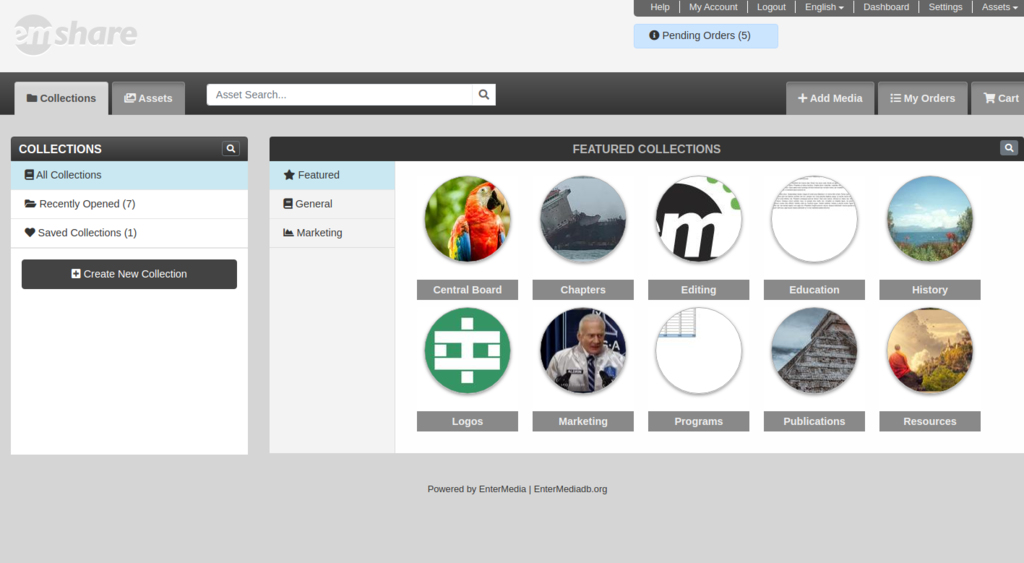
Library Management
Easily edit, share, seach, and organize all of your files using our versatile navigation system from the web or desktop.
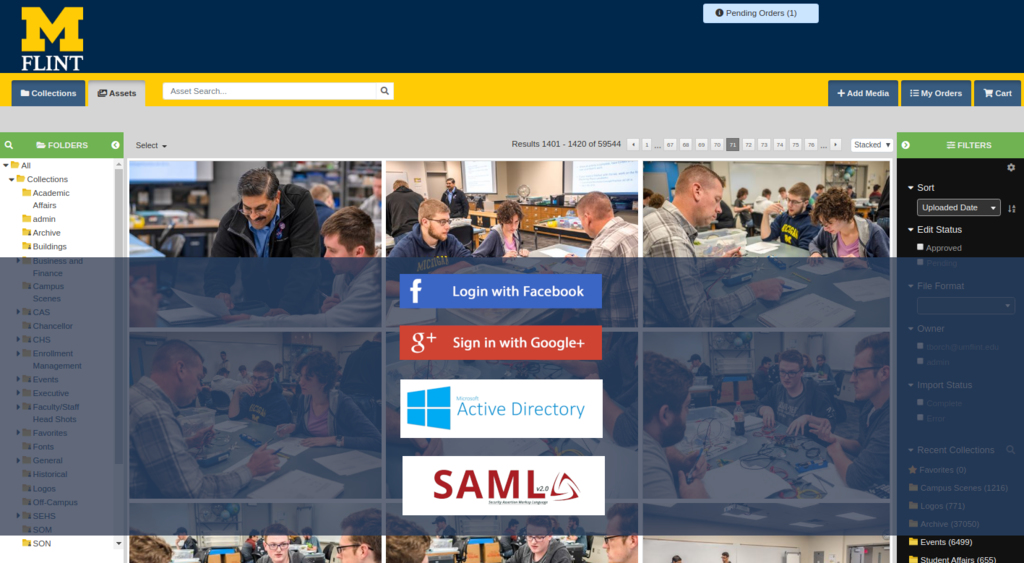
Corporate Integration
We are able to integrate with your existing corporate solution such as SSO and indexing network drives.
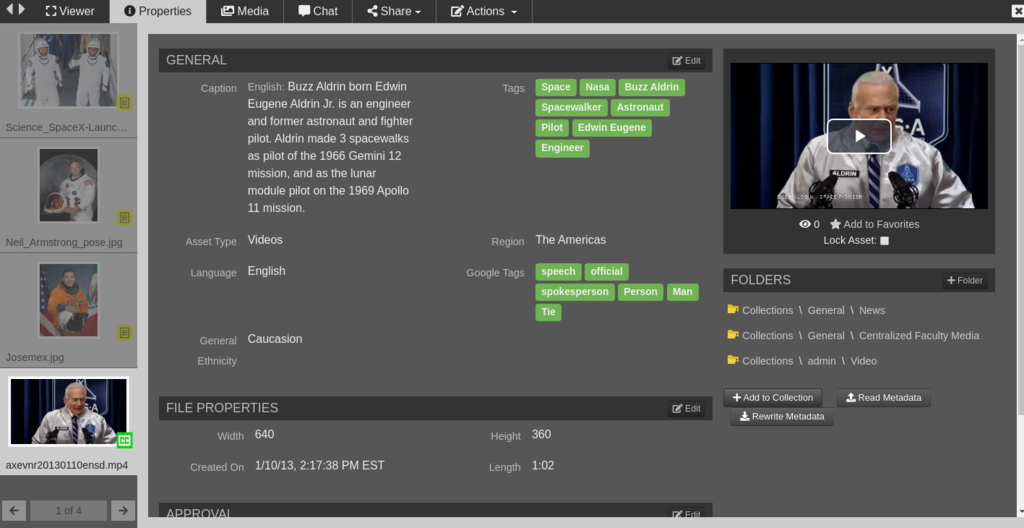
Artificial Intelligence
Use our AI to do the heavy lifting for you with automatic tagging, video and audio transcription, and facial recognition (coming soon).
Create a Free EnterMedia Account to Get Started!
All EnterMedia accounts are completely FREE and full-featured.
Create yours today and...

Deploy a trial server
Test the software with a prepackaged version of the latest stable release, complete with sample assets, associated metadata, users, and roles.

Get 50 free tech support points
Get advice from our team of expert developers and software architects to learn how to get the most out of your Digital Asset Management tool.

Join our growing community of developers:
Community support is an essential element of open source projects. Join our growing group of developers in exchanging ideas and discussing potential uses of the software.

Participate in our online forum
Post questions and comments, get quick answers for evaluations, get support from our diverse community of users and developers.
Fully Open Source DAM built in partnership with


1550 Magnolia Dr.
Cincinnati, OH 45215
help@entermediadb.org
Open Source Community